
September 9, 2026
AI IN THE TERMINAL IS MORE POWERFUL THAN THE GUI
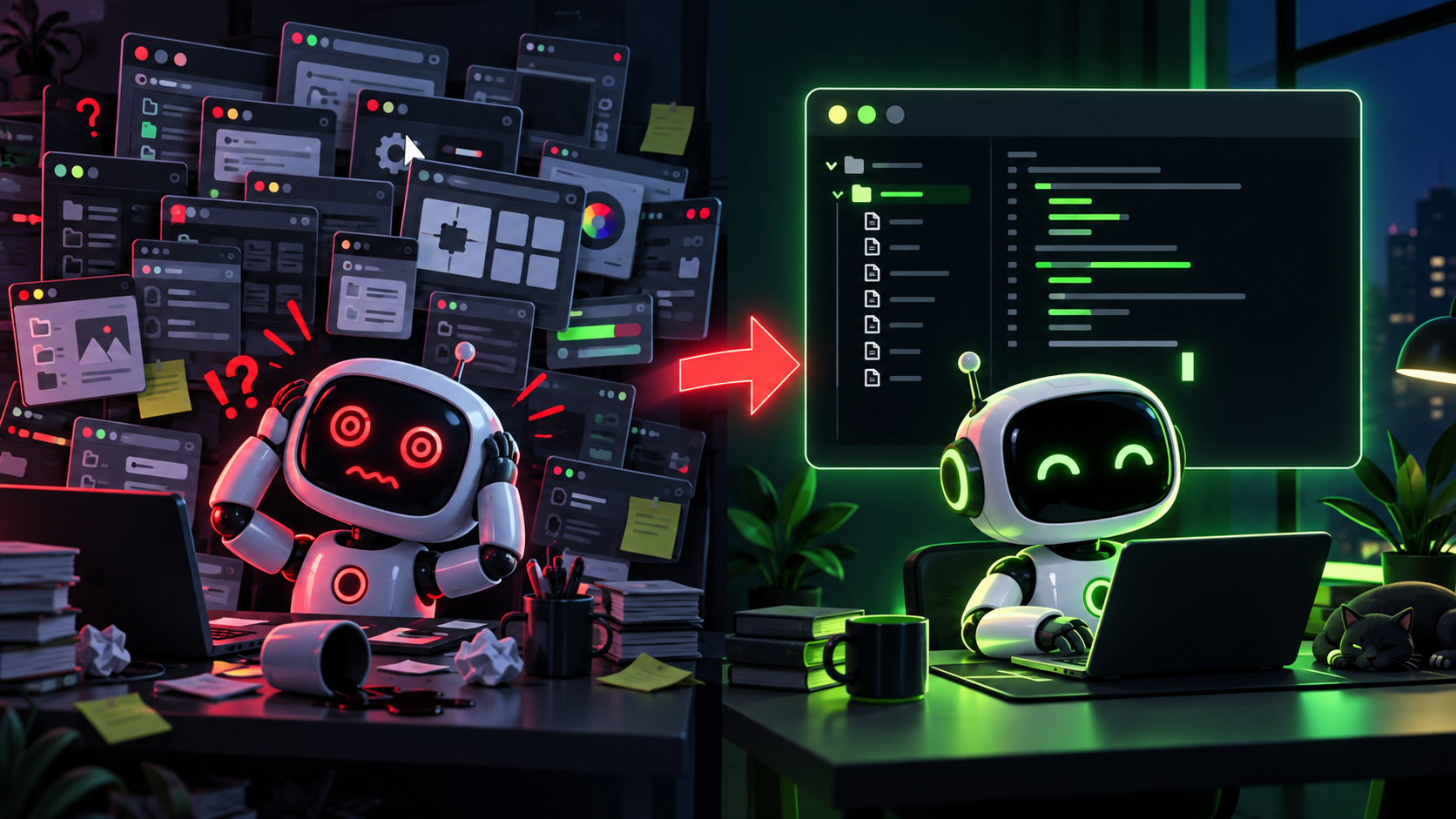
If you already use AI every day but only through a normal chat window, you are probably missing one of the most useful ways to work with it.
Welcome to AI in your terminal.
The terminal can look intimidating at first. It has no big buttons, no cards, and almost no visual guidance. It looks like something made only for developers.
But AI is changing that.
You no longer need to memorize a huge list of commands before the terminal becomes useful. Tools like Codex and Claude Code let you describe what you want in plain English, then work with the files and tools that already exist on your computer.
That changes what AI can do for you.
First, what is a CLI?
CLI stands for Command Line Interface.
It is a text-based way to interact with your computer.
With a graphical user interface, or GUI, you normally move a mouse, click buttons, open menus, and drag files around.
With a CLI, you type instructions.
For example, instead of clicking through folders until you find the one you want, you can tell the terminal which folder to open with a command.
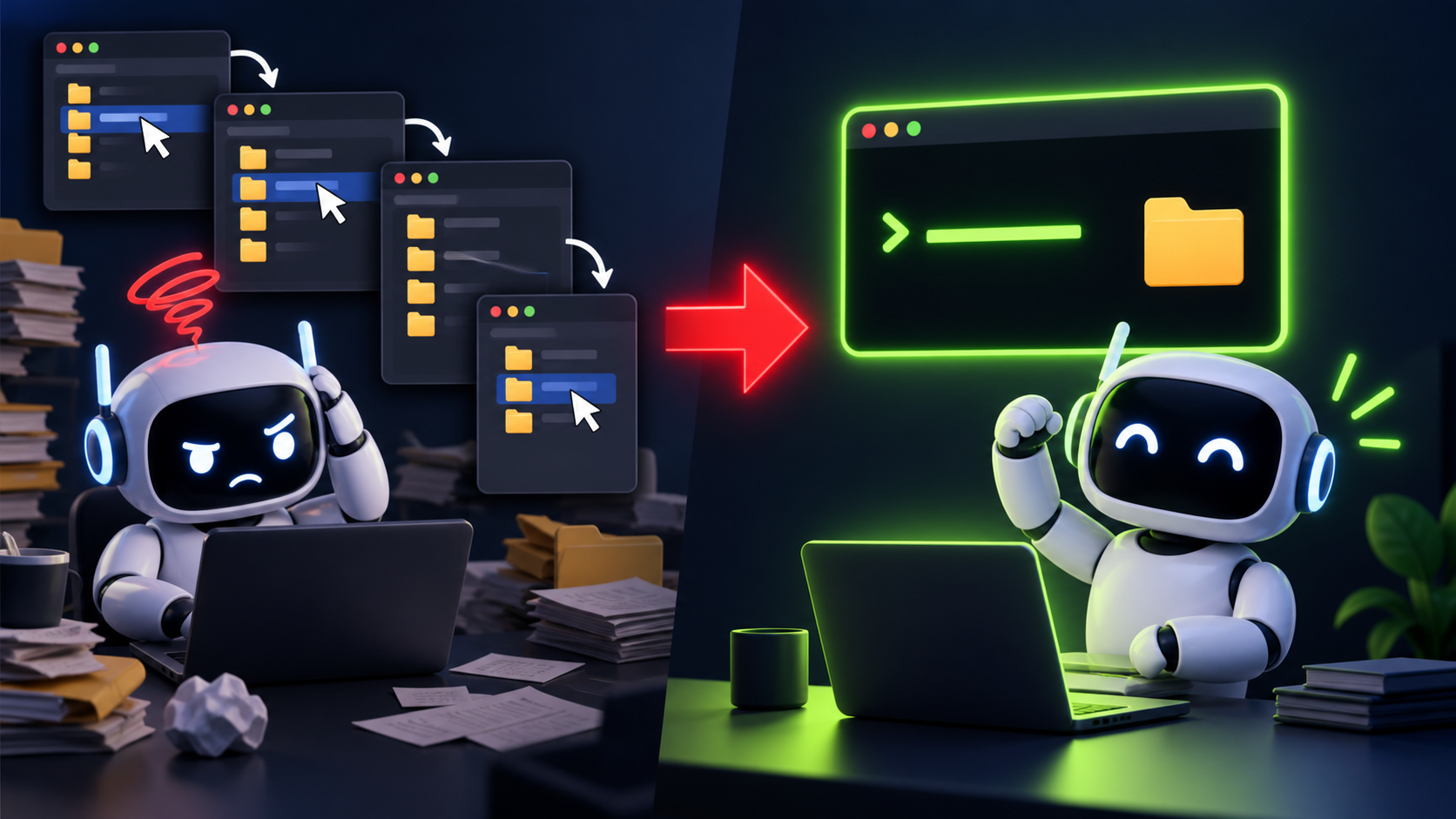
The command line has been around since the early days of computing. Graphical interfaces made computers much easier for most people to use, but the terminal never disappeared because it is still extremely powerful for certain kinds of work.
Why can the terminal be better for AI?
Here is the important distinction.
The terminal does not make the AI model itself smarter.
It gives the agent a different environment to work in.
When an AI agent has to operate a graphical interface through computer-use tools, it may need to inspect screenshots, decide where to click, perform the action, inspect the new screen, and repeat that loop.
In a terminal environment, an agent can often work more directly. It can read files, run commands, inspect the output, make a change, test it, and continue.
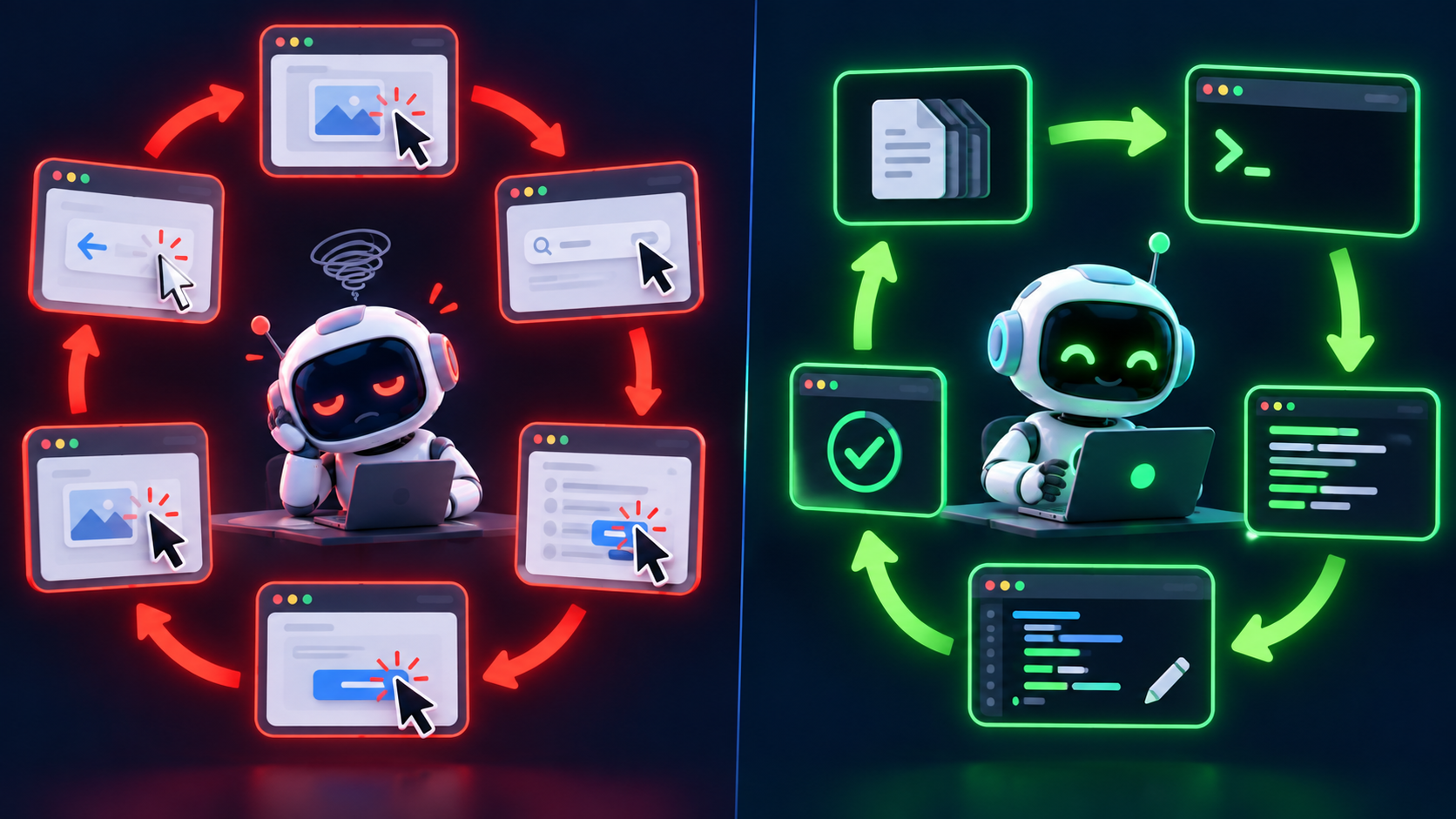
For tasks that naturally live in files and commands, that can be a much cleaner workflow.
This is why I like thinking about the terminal as less of a "developer screen" and more like a workspace where an AI agent can actually do things.
And to be clear, GUI does not mean weak. The normal AI interface is great for chatting, asking questions, and brainstorming. But when you want AI to work with your files and actually build things on your computer, the terminal can be much more powerful.
That is where the real advantage comes from.
What makes the CLI so useful?
Even without AI, the command line has a few properties that make it incredibly powerful.
1. It is fast and direct
A command can replace several clicks and menu changes. If you already know where a file or project is, you can jump directly to it instead of navigating through windows.
2. It is easy to automate
Anything that can be expressed as a repeatable command can often become part of a script. A task you do manually over and over can become something the computer does for you.
3. It can work with computers anywhere
The terminal is commonly used to connect to other computers and servers remotely. You can work with a machine on the other side of the world without sitting in front of its screen.
4. It is reproducible
A sequence of commands can be saved, shared, and run again. That makes it easier to repeat a process with much more precision than trying to remember which buttons you clicked.
5. It can be lightweight
Many command-line tools can do their job without loading a full graphical application. That is one reason the terminal remains useful even though graphical interfaces have existed for decades.
AI is making the CLI accessible to everyone
This is the part that changed everything for me.
Historically, the biggest barrier to the terminal was syntax.
You had to know what command to use, how to write it, what every option meant, and what to do when something failed.
Now you can simply explain what you are trying to accomplish.
Instead of memorizing the exact command for everything, you can ask your AI agent to help you navigate, inspect a project, fix an error, or perform a task.
If a command fails, the agent can read the error and help you understand what happened.

You are still working with the terminal, but you are no longer working alone.
What AI can do from your terminal
This is where things start getting interesting.
When an AI agent is working inside a project folder, it can inspect the files that are already there and use them as part of the task.
That makes the terminal useful for much more than asking coding questions.
You can use it to:
- build a simple website or local app
- create tools for yourself
- organize and understand a complicated folder
- work with documents and data
- generate or edit files
- debug a project
- run tests and inspect errors
- update documentation as a project changes
- automate repetitive work
- deploy projects when the required tools are available
The important part is not any individual example.
It is that the agent can work inside the same environment where the project already exists.
You do not have to manually paste every file into a chat window. The agent can inspect what it needs from the working folder, subject to the permissions you give it.
That is a very different experience from treating AI as a chatbot.
Your project can become part of the context
One of my favorite parts of working this way is how naturally a project can document itself.
Your folder can contain the code, notes, instructions, documentation, assets, and other files that explain how the project works.
Terminal agents such as Codex and Claude Code can read those files when they are relevant.
You can also keep project-specific instruction files so the agent knows important rules every time you return to the project.
This does not give an AI perfect or unlimited memory. Context still has limits.
But it does mean that a lot of the information needed to continue your work can live with the project itself instead of depending on you remembering to explain everything again.
Which AI agent should you use?
There are several AI agents that can work from a terminal. Gemini CLI and GitHub Copilot CLI are two other examples.
For this beginner guide, I am going to focus on Codex from OpenAI and Claude Code from Anthropic.
You only need one of them to get started.
Install Codex
Codex CLI is OpenAI's coding agent for the terminal. It runs locally on your computer and can work with files and commands in the project you open it from.
A CLI can do much more than write code
This is one of the most useful ideas in this whole guide. A CLI gives an AI a way to work with the real environment around a project: files, folders, commands, servers, logs, databases, and the tools developers normally use to set things up and repair them.
Combine Codex with Computer Use, a ChatGPT plugin, and the reach becomes much bigger. We will talk more about plugins later. For now, the important idea is that you can open a website in a browser, enable Computer Use, and let it work across the browser and your terminal. The browser side can navigate a service’s dashboard; the Codex side can create project files, run commands, install a package, read an error, and test whether the pieces now work together.
Imagine you want to create an AWS server or database but do not know AWS yet. You can open AWS in the browser, explain what you are trying to build, and have Computer Use guide the console work while Codex works in the terminal beside it: preparing the app, connecting it to the database, running setup commands, checking configuration, and helping fix the errors that appear. You still decide what account, services, and spending you authorize—but you no longer need to know every AWS screen or command before you begin.
That is a powerful example of what a CLI is for: it gives the AI practical hands inside the technical part of the workflow, not just a chat window that can describe what you should do. We will come back to plugins, connections, and more advanced workflows later.
macOS or Linux
Open your terminal and run:
curl -fsSL https://chatgpt.com/codex/install.sh | shWindows
Open PowerShell and run:
powershell -ExecutionPolicy ByPass -c "irm https://chatgpt.com/codex/install.ps1 | iex"Once it is installed, start Codex with:
codexThe first time you run it, choose Sign in with ChatGPT if that option is available for your plan.
After that, open the folder you want to work in and start Codex from there.
A great first request is simply:
You do not need to start by asking it to change anything. Let it look around first.
Install Claude Code
Claude Code is Anthropic's coding agent. It can read your project, edit files, run things on your computer, and work with the tools you already have, all from the terminal.
macOS, Linux, or WSL
curl -fsSL https://claude.ai/install.sh | bashWindows PowerShell
irm https://claude.ai/install.ps1 | iexYou can confirm that it installed correctly with:
claude --versionThen start it with:
claudeThe first time, Claude Code will guide you through the login process in your browser.
Once you are signed in, open a project folder in your terminal and run claude from there.
Again, your first task can be extremely simple:
You are not trying to become a developer on day one. You are learning what becomes possible when an AI agent can work in the same environment as your files.
More useful tools once you know the basics
Cursor: an underrated, inexpensive coding asset
Cursor is here because it is a cheaper, genuinely useful way to start coding with AI—and it is a popular choice among developers for exactly that reason. It is not ChatGPT with a code box. It is a real code editor: you open a project, see the actual files and folders, edit them directly, run the project, and use AI inside that workspace.
It is not a terminal-first CLI like Codex or Claude Code, but that is also why it is useful. You can see what the AI is changing, use tab completion, ask it to make a focused change, and review the result without leaving the editor. For basic coding, Cursor is an underrated asset. Its Pro plan is currently $20 per month and includes agent access, tab completions, cloud agents, and access to frontier models, with usage limits depending on the model you choose. It is a good, affordable place to learn the rhythm of opening a project, making a small change, reviewing it, and running it. For bigger or more autonomous tasks, I would still reach for Codex or Claude Code—but Cursor is excellent for everyday edits and building confidence.
Google Antigravity: worth exploring, but not my first choice for serious work
Google Antigravity is Google’s agent-first coding platform. It has an IDE, an agent workflow, browser control, and a terminal-first CLI. It is interesting because it lets Gemini agents plan and work across an editor, terminal, and browser.
Google is offering some Gmail users $300 in Cloud credit right now. I got the offer, and it is a useful way to experiment with a server, a database, or other infrastructure without immediately paying for it yourself. It does not make Antigravity free, but it can cover some of the things we will build later.
My take: try Antigravity. It is a useful window into where agentic coding is going, especially if you already live in Google’s ecosystem. But for the kind of dependable, file-first work this guide is about, I would still begin with Codex or Claude Code. They are the stronger default tools for serious projects; Antigravity is an interesting addition, not the foundation.
One CLI, lots of models: OpenRouter + OpenCode
OpenRouter is not an AI model. It is a routing layer: one account, one API key, and one place to access a large range of models from different companies. That includes OpenAI and Anthropic models, as well as Chinese models from teams such as Z.ai, Qwen, DeepSeek, Moonshot AI, and others.
Think of it as the layer between your coding tool and the model companies. Instead of creating a different account, API integration, billing setup, and workflow for every model provider, a compatible tool can use OpenRouter’s single API. From one dashboard you can see a model’s price, context window, capabilities, and availability; add credit once; and change models without changing the rest of your setup.
That is more than convenience. A model can be temporarily overloaded, unavailable, too expensive for a large job, or simply weak at the task in front of you. OpenRouter can route the request to a provider serving that model, and it supports fallbacks: you can name another model to use if the first one fails. For someone learning, you do not need to configure all of that on day one. The immediate benefit is much simpler: you can experiment without rebuilding your workflow every time the leaderboard changes.
That matters because a model does not need to have its own terminal app for you to use it in the terminal. The CLI is the working harness: it reads your project, proposes edits, runs commands, and keeps the conversation in context. The model is the brain you choose inside that harness.
OpenCode is a free, downloadable open-source CLI that can be that harness. On a Mac, its installer is:
curl -fsSL https://opencode.ai/install | bashThen open a project in Terminal and start it:
cd path/to/your-project
opencode
Inside OpenCode, use /connect to select OpenRouter and add your OpenRouter API key. Use /models to select the model you want to work with. From there, the same terminal workflow can connect you to many different models instead of locking you to one company or one native CLI.
A current example: GLM-5.3 Flash
GLM-5.3 Flash from Z.ai is a useful example. It is a Chinese model that is currently at the top of OpenRouter’s coding collection by usage. It has a very large context window and is designed for coding, tool use, and longer agent-style tasks—work such as exploring a codebase, making a multi-file change, running checks, and continuing from the result.
The growing demand for Chinese models is largely a cost-and-capability story. The important point is not that you need to write your prompts in Chinese—you can use them in English. It is that models from companies such as Z.ai, Qwen, DeepSeek, and Moonshot have become good enough for real coding and agent work while often costing much less per token than the biggest US frontier models.
That price difference becomes meaningful with agents. A normal chat might use a few thousand tokens. A coding agent can read a codebase, inspect files, try commands, repair an error, and keep going for many turns. It may use hundreds of thousands or millions of tokens in one long task. A lower-cost model is not automatically the best choice, but it gives you room to test ideas, do first passes, or run routine work without treating every prompt as expensive.
This is why OpenRouter is particularly useful right now. It lets you keep a reliable model for important planning or difficult reasoning, then choose a lower-cost model for exploration, repetitive coding, summarising files, or an agent that needs to take many steps. You can compare the real output and the real cost in the same workflow instead of arguing from hype.
That does not mean it is automatically better than Codex or Claude Code for every job. Strong coding work still depends on the model, the task, the project instructions, and your review. But it is exactly why OpenRouter is useful: you can try GLM-5.3 Flash for a task where it fits, switch to another model when it does not, and keep the same project and terminal workflow. You are choosing the best brain for the job instead of rebuilding your setup every time a new model appears.
OpenRouter charges for the models you use, so start small and set a spending limit in your account. Some models also offer limited free access, but serious coding and agent work should be treated as paid usage.
The market signal is hard to ignore: Stripe confirmed it acquired OpenRouter in August 2026. The companies did not disclose the price publicly, but reporting put the deal at more than $8 billion. That does not prove a tool is right for you. It does show that model routing—being able to compare, switch, and pay for many AI models through one layer—is becoming important infrastructure.
A few terminal commands worth knowing
You do not need to memorize dozens of commands.
These few are enough to make your first sessions much more comfortable:
| Command | What it does |
|---|---|
pwd | Shows the folder you are currently in on macOS/Linux |
ls | Lists the files and folders around you on macOS/Linux |
dir | Lists files and folders in Windows |
cd folder-name | Moves into a folder |
cd .. | Moves back one folder |
mkdir name | Creates a new folder |
clear | Clears the terminal screen on macOS/Linux |
cls | Clears the terminal screen in Windows |
codex | Starts Codex |
claude | Starts Claude Code |
And if you forget a command, do not guess.
Ask the AI what you are trying to do in plain English.
That is the whole point.
Three good first projects
You do not need to build a startup to understand why this workflow is useful.
Start with something small enough that you can see the whole process.
1. Let the AI explain and organize a messy folder
Pick a folder with files you understand and ask the agent to inspect it.
The goal is not to let it delete or move things immediately.
First, ask it to explain what is there, identify duplicates or confusing organization, and propose a cleaner structure.
You could even ask it to create a simple local HTML report that gives you a visual map of the folder before you decide whether to change anything.
What this teaches you: the AI can inspect multiple local files, build an understanding of a workspace, and turn that information into something useful.
2. Build a tiny local website
Create a new empty folder and ask the agent to build a very simple website that runs only on your computer.
Keep the idea intentionally small: a personal dashboard, a countdown page, a simple expense calculator, or a page that organizes a few useful links.
Then ask the agent to open or run it so you can see the result.
What this teaches you: the terminal can move from conversation to actual files and a working result without you manually creating every file.
3. Build a tiny tool for yourself
Think of one repetitive thing you do on your computer.
Maybe you regularly rename files, organize downloads, transform a list, summarize text files, or generate the same type of document.
Ask the agent to help you create a small local tool for that one job.
Keep the first version simple.
What this teaches you: AI in the terminal is not only about coding for other people. It can help you create software for your own problems.
Avoid these rookie mistakes
Giving an AI agent access to your computer is powerful, which means you should also be careful.
Do not casually share secrets
Be careful with files that contain passwords, API keys, private information, credentials, or other sensitive data.
A file named .env commonly contains secrets. Do not assume that every file in a project is safe to share with an AI service.
Review changes before you keep them
AI agents make mistakes. Before accepting a large change, understand what was modified and make sure the result still works.
If you start using Git, think of commits like save points for your project. A checkpoint before a big change makes it much easier to go back if something breaks.
You do not need to master Git before your first terminal session, but it is worth learning soon.
Start with normal permission settings
Do not disable safety prompts just because they are annoying. When you are learning, it is useful to see what the agent is trying to read, change, or run.
Give it more autonomy only after you understand the workflow.
Be careful with API billing
Both Codex and Claude Code can support workflows that use API-based billing, depending on how you configure them.
For a beginner, signing in with a supported subscription account is usually easier to understand than starting with usage-based API billing. If you do use an API, learn how its pricing and spending controls work first.
The terminal is not replacing the GUI
I still use graphical AI interfaces all the time.
They are great for conversation, brainstorming, research, quick questions, images, and a lot of everyday work.
The point is not that the GUI is bad.
The point is that once your task becomes a real project with files, tools, repeated actions, tests, and things that need to run, the terminal starts to make a lot more sense.
And AI has removed a big part of what used to make the terminal intimidating.
You do not need to learn everything first.
You can learn the terminal while using it.
That is why I think AI in the terminal is one of the most useful upgrades you can make to the way you work with AI.
References
- OpenAI Codex CLI: https://github.com/openai/codex
- OpenAI computer use documentation: https://developers.openai.com/api/docs/guides/tools-computer-use
- OpenAI shell documentation: https://developers.openai.com/api/docs/guides/tools-shell
- Anthropic Claude Code quickstart: https://code.claude.com/docs/en/quickstart
- Anthropic Claude Code overview: https://code.claude.com/docs/en/overview
- Anthropic Claude Code security: https://code.claude.com/docs/en/security
- Google Gemini CLI: https://developers.google.com/gemini-code-assist/docs/gemini-cli
- GitHub Copilot CLI: https://docs.github.com/en/copilot/how-tos/copilot-cli/cli-getting-started
ARTICLE DISCUSSION
JOIN THE
CONVERSATION.
Got a question, a take, or a better way to do this? Log in and leave a comment.